

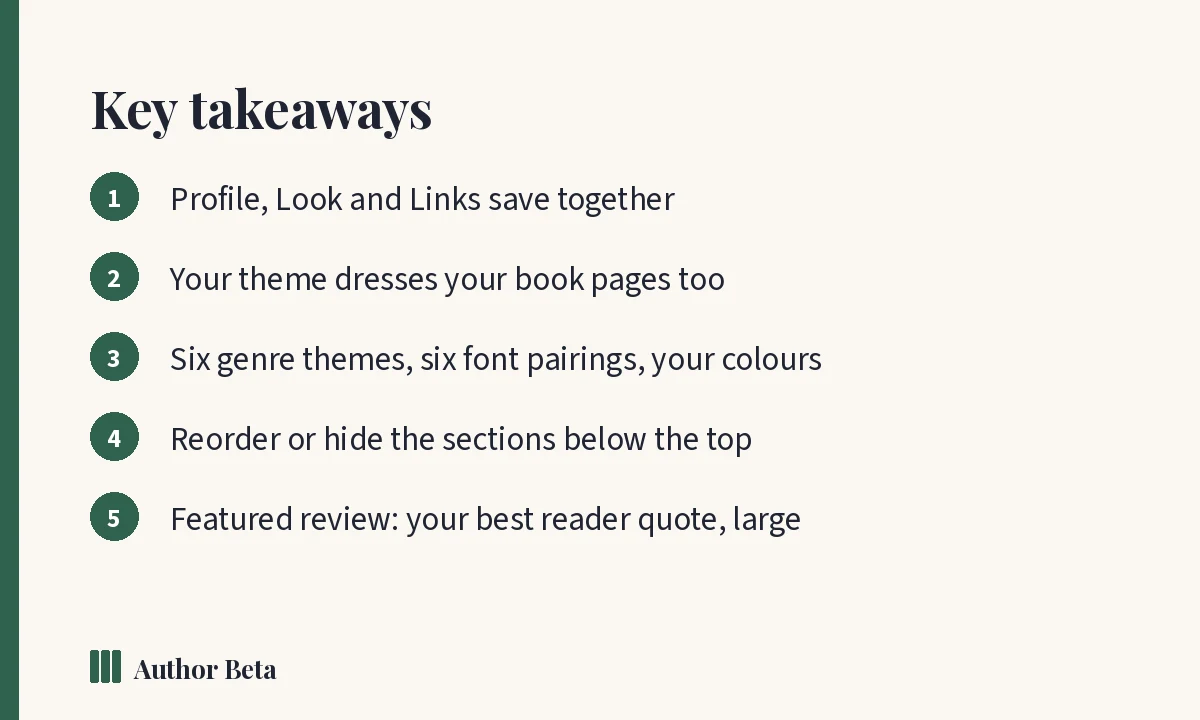
Your author page settings come in three groups on one screen: Profile, Look and Links. One Save changes button saves all three. Below them sits Your books, where each book is saved on its own. Here is every option and what it does on the page readers see.
Profile
- Show my author page publicly: the master switch. On, your page is public and listed in the Authors directory. Off, only you can see it.
- Author page rules: a one-time agreement that the page shows only your own work, honest information, and reader reviews exactly as they were written.
- Page address: your name in two or more parts. A new or changed address is checked by our team before it goes public.
- Proof you write under this name: optional link that speeds up the check.
- Pen name: the name shown everywhere on your page and in the directory.
- Where you’re based: optional, for example “Montana, USA”.
- Headline: the line under your name. It also becomes part of your page’s description in search results.
- Genres you write: shown as labels on your page and used by the directory’s genre filter.
- Short bio (600 characters) and Full bio (8,000 characters, with “## ” subheadings).
- Photo or logo: square works best.
- Featured review: one published reader review, shown large at the top of your page. Choose None to leave it out.
Look
Your look applies to your author page and every book page, so readers always know they are on your pages.
- Theme: Classic (warm paper, any genre), Noir (dark and sharp: thrillers, crime, horror), Rose (soft blush: romance), Parchment (old paper, forest green and gold: fantasy and historical), Starlight (deep night blue: science fiction) or Minimal (white space: literary and nonfiction).
- Accent colour: your own colour for buttons and links.
- Your own colours: replace the theme’s five colours while keeping its type and style. These are also your Author Site colours, so everything matches.
- Fonts: the theme’s own, or Editorial (Playfair Display with Source Sans), Elegant (Cormorant Garamond with Lato), Modern (Montserrat with Merriweather), Literary (EB Garamond) or Typewriter (Special Elite with Courier Prime).
- Top of your page: the theme’s background, a colour, or a wide picture (about 2000 × 800). Text sits on top in white with a soft shade so it stays readable.
- Sections: put Featured review, Books and Full bio (About) in the order you want, and hide any of them.
Change any of these author page settings and save; your book pages update at the same time.
M.A. Kirkeby uses the Parchment theme: it suits Norse myth and the old West, and it carries across to his book pages and his links page.
Links
- Your links: website, newsletter, Amazon author page, Goodreads, BookBub and ten social networks. A newsletter link adds a “Join my newsletter” button.
- Your own links: up to six more with your own label, such as “Signed copies”.
- Let Author Beta feature my page: optional permission for us to show your page, covers and published reviews in our own posts and newsletters. Untick it any time.
What you can’t see in the settings, but readers can
- Badges you earn, such as “Full profile” and “Published author”, appear on your page automatically.
- Your open beta reads appear while a round is open.
- Search engine details: your page tells search engines who you are, which books you wrote and where else you are online (your links), so your name can be matched to your books.
Settings that live on other pages
- Book pages: each book’s fields are under Your books on the same screen. See How to build a book page.
- Pen names: extra identities with their own pages, in Pen names (the Writing Desk includes one, Cliff Hanger up to ten).
- Link-in-bio: Author Links, explained in Author Links: a link-in-bio page for authors.
- A fully designed site with your own pages: Your own author site, with Cliff Hanger.
Open your author page settings
Frequently asked questions
Where do I find my author page settings?
Dashboard → Author page. Profile, Look and Links are on one screen with one Save button; each book under Your books has its own Save book button.
Do theme changes affect my book pages?
Yes. The theme, fonts and colours you choose are used on your author page and on every book page.
Can I hide the reviews section?
Yes. Under Sections, untick Featured review, or choose None as your featured review.
Will changing my page address break old links?
A changed address needs a new name check, and links people already shared with the old address will not follow it. Choose your address carefully the first time.
Comments