

Mail, step by step
A picture-by-picture walk through Author Mail: the Mail light, reading, replying, writing with designs, attachments, scheduling, templates, automatic replies, spam and quarantine.
This guide follows a real conversation, using a test author called Testing (testing@authorbeta.com). Red numbers in each picture match the numbered notes under it.
1. The Mail light
Whenever you’re signed in, the ✉ Mail pill at the top of every page tells you about your mail.


Spam and quarantined mail never light the pill. On a phone it shows just ✉ and the number, beside the ☰ menu.
2. Your Inbox
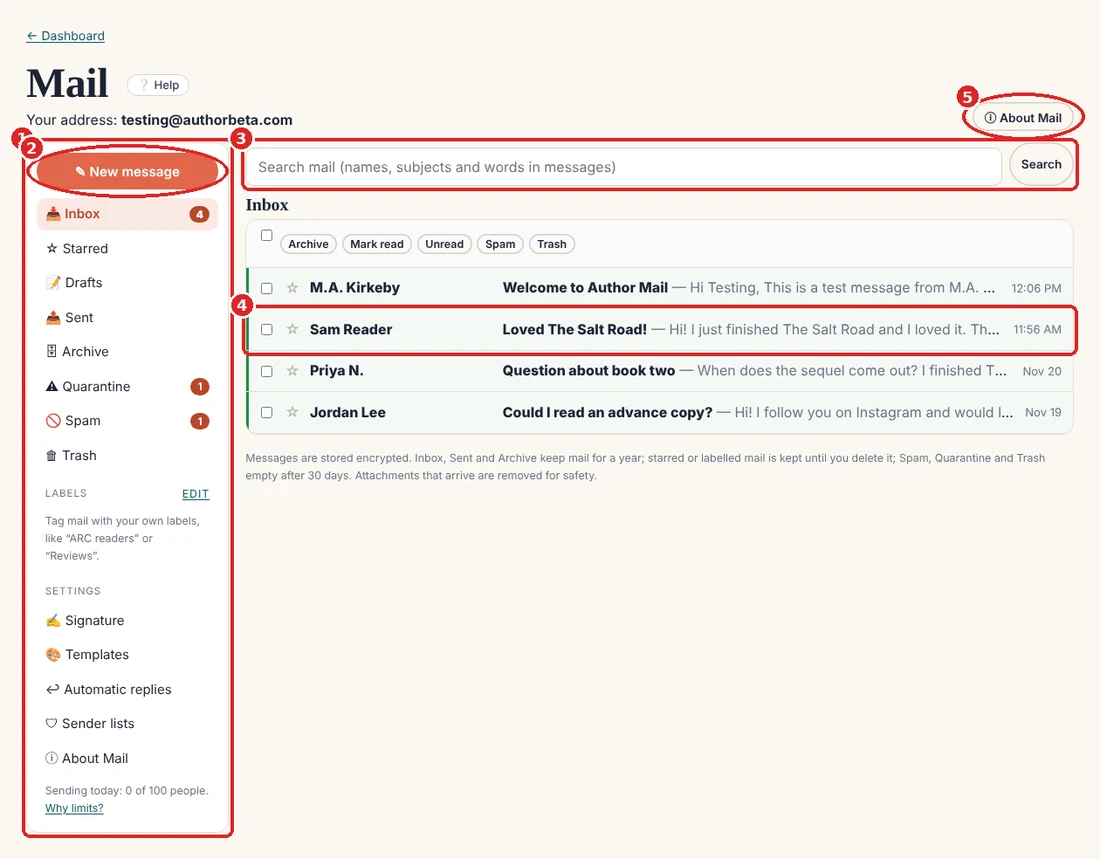
- Folders, labels and settings. Numbers show unread mail, drafts and anything waiting for you.
- New message starts a fresh email.
- Search looks through names, subjects and the words inside messages.
- Unread mail is bold with a green edge. Tick boxes to archive, mark read, mark as spam or trash several at once.
- About Mail explains everything: privacy, safety, limits and what’s coming next.
3. Reading a message
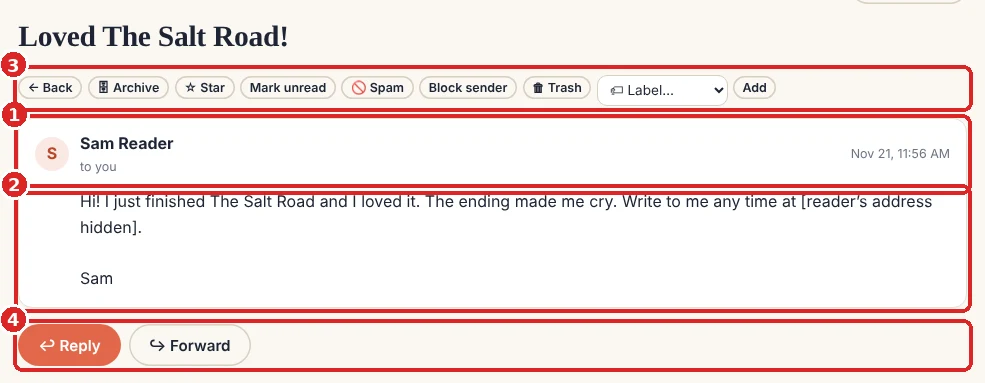
- Who it’s from. A reader shows by name only. Their email address is private, even to you.
- The message. If they typed their address in it, we hide that too. Pictures from outside stay off until you press Show pictures, so senders can’t tell when you read their mail.
- Actions: Archive, Star, Mark unread, Spam, Block sender, Trash, and 🏷 Label (make your own, like “ARC readers”).
- Reply or Forward. Replies, and the replies to those, stay together as one conversation.
4. Replying
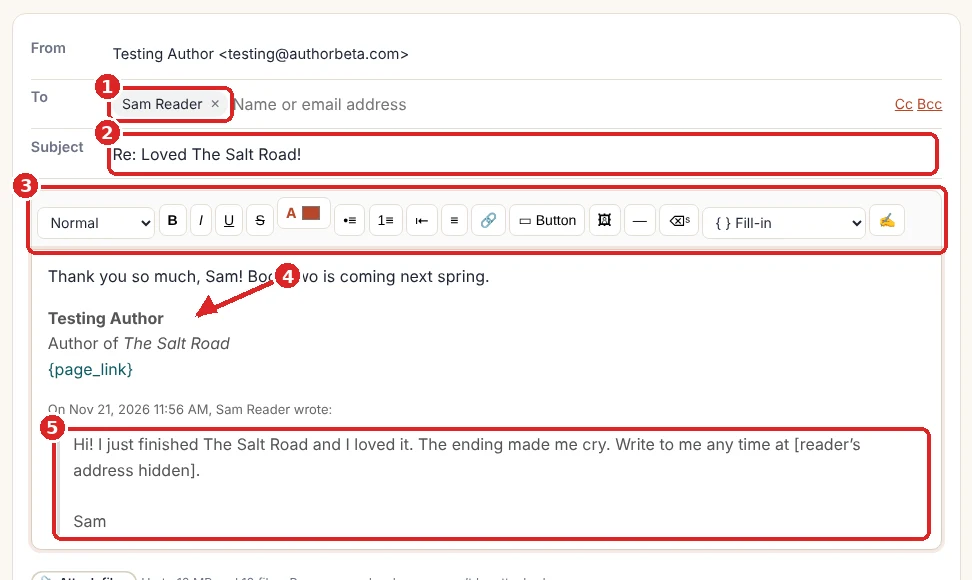
- To: Sam, by name. We send it to Sam’s real address without showing it.
- Subject: “Re:” is added for you.
- Formatting: headings, bold, italic, underline, colour, lists, links, buttons, pictures, dividers and fill-ins.
- Your signature is added under your words (set it once under Settings → Signature).
{page_link}becomes your page’s address when it’s sent. - Their message is quoted below yours.
Press Send. Everything you write is also saved in Drafts as you type, so nothing is lost if you close the page.
5. Writing a new message
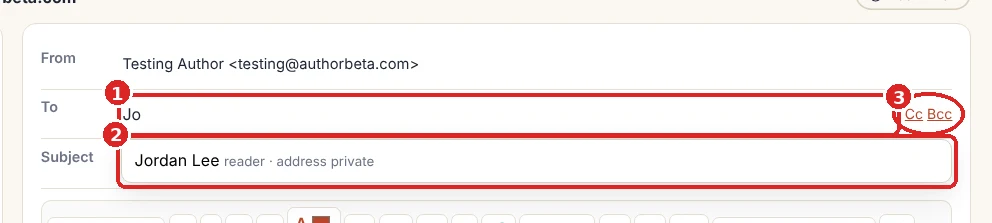
- Type a name or email address. Press Enter or a comma after each one.
- Suggestions come from people you’ve written to or heard from. Readers show as “address private”. Other authors appear by page name.
- Cc and Bcc open more lines. If you have a newsletter, + Mailing list adds your whole list (it goes out as a newsletter with an unsubscribe link).
6. Designs and presets
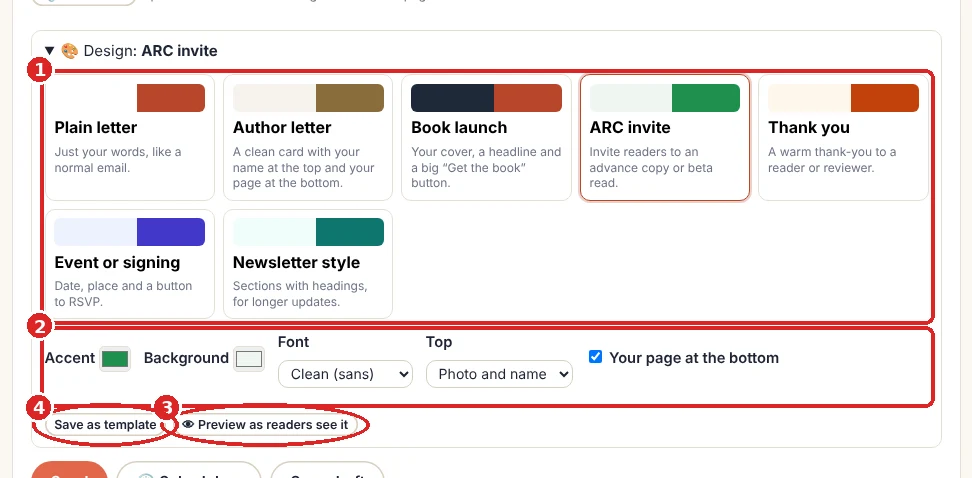
- Pick a design: Plain letter, Author letter, Book launch, ARC invite, Thank you, Event or signing, or Newsletter style. If you haven’t written yet, the design brings starter words too.
- Make it yours: accent and background colours, font, what’s at the top (nothing, your name, or your photo and name) and your page at the bottom.
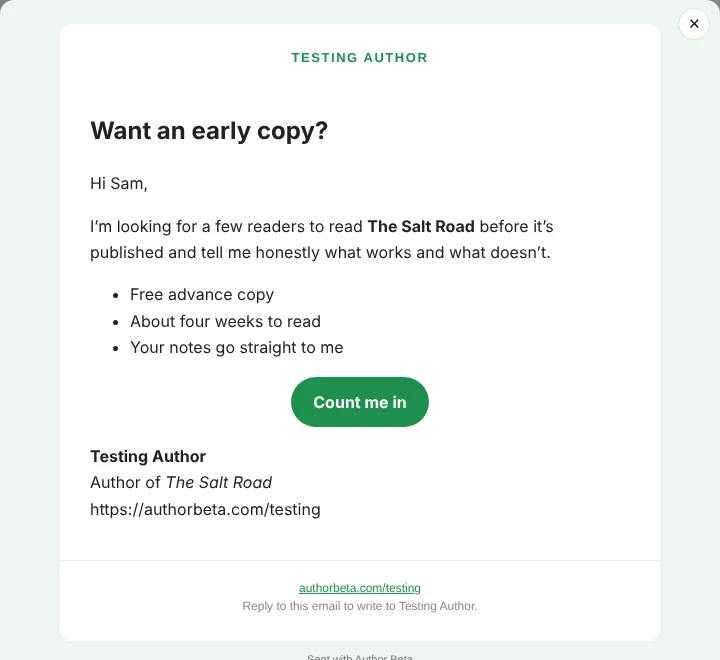
- Preview as readers see it, with the fill-ins filled in.
- Save as template keeps the words, subject and design for next time.
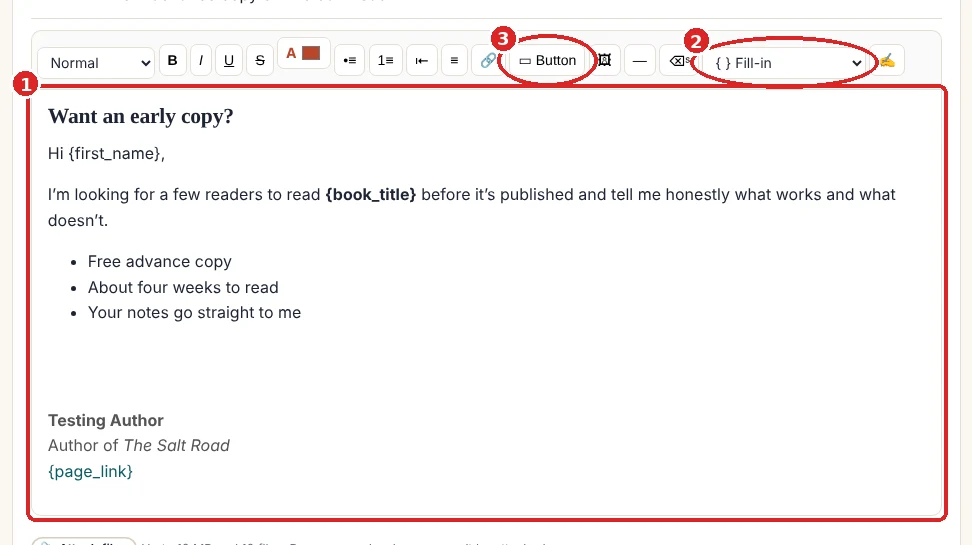
- Starter words you can change freely. Words in curly brackets are fill-ins: {first_name}, {name}, {author_name}, {page_link}, {book_title} and {store_link} are filled in for each person when you send.
- { } Fill-in adds one where your cursor is.
- ▭ Button adds a big link button (for example “Get the book” pointing to {store_link}).
7. Attach, schedule and send
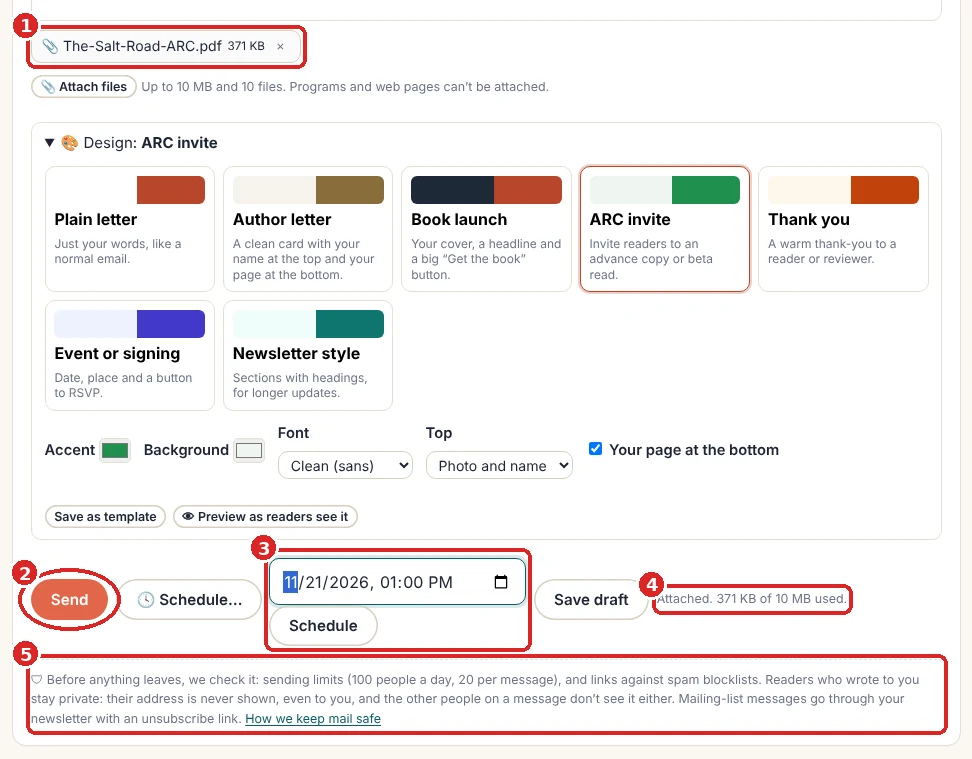
- Attachments: documents, ebooks (EPUB, MOBI, PDF), pictures, audio and zip files, up to 10 MB and 10 files per message. Programs and web pages can’t be attached.
- Send now.
- Or 🕓 Schedule… and pick a date and time (up to a year ahead). It goes out within 15 minutes of that time, and waits under Scheduled until then, where you can change or cancel it.
- Saved as you type: the time of the last automatic save, and how much attachment room is left.
- The safety note: what we check before anything leaves (see step 11).
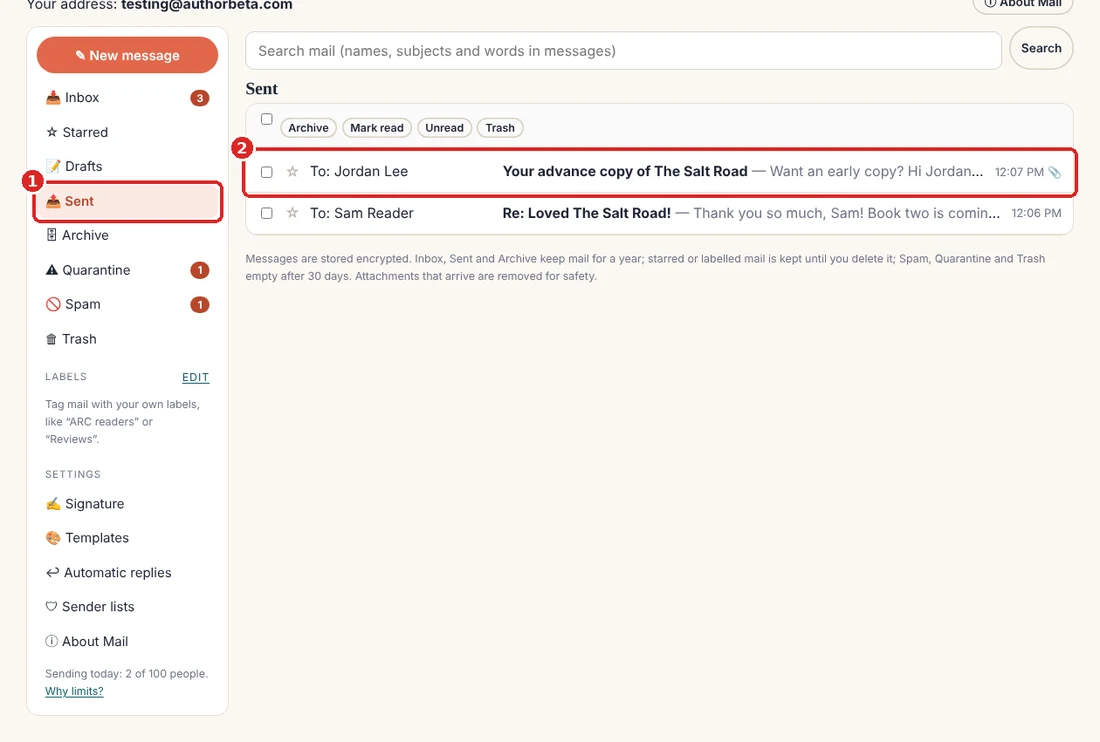
8. Signature, templates and labels
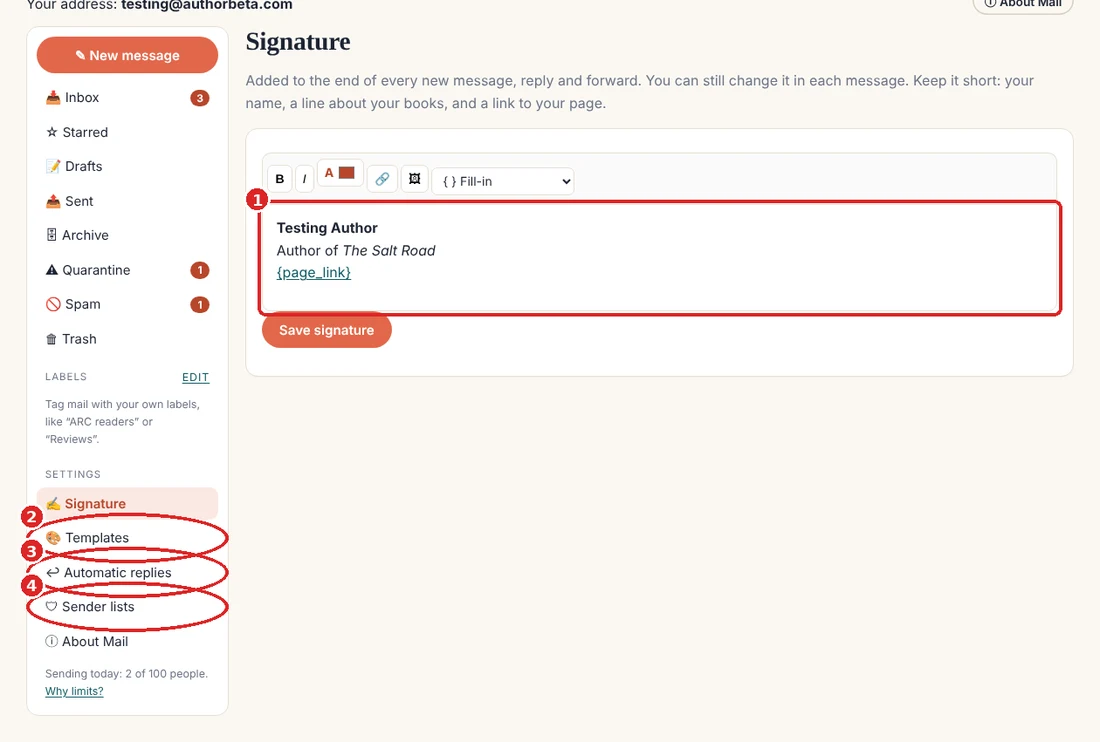
- Signature: your name, a line about your books and a link. Added to every new message, reply and forward.
- Templates: your saved messages. Press Use to start a message from one, or pick it from the Design panel.
- Automatic replies (next step).
- Sender lists (step 10).
9. Automatic replies
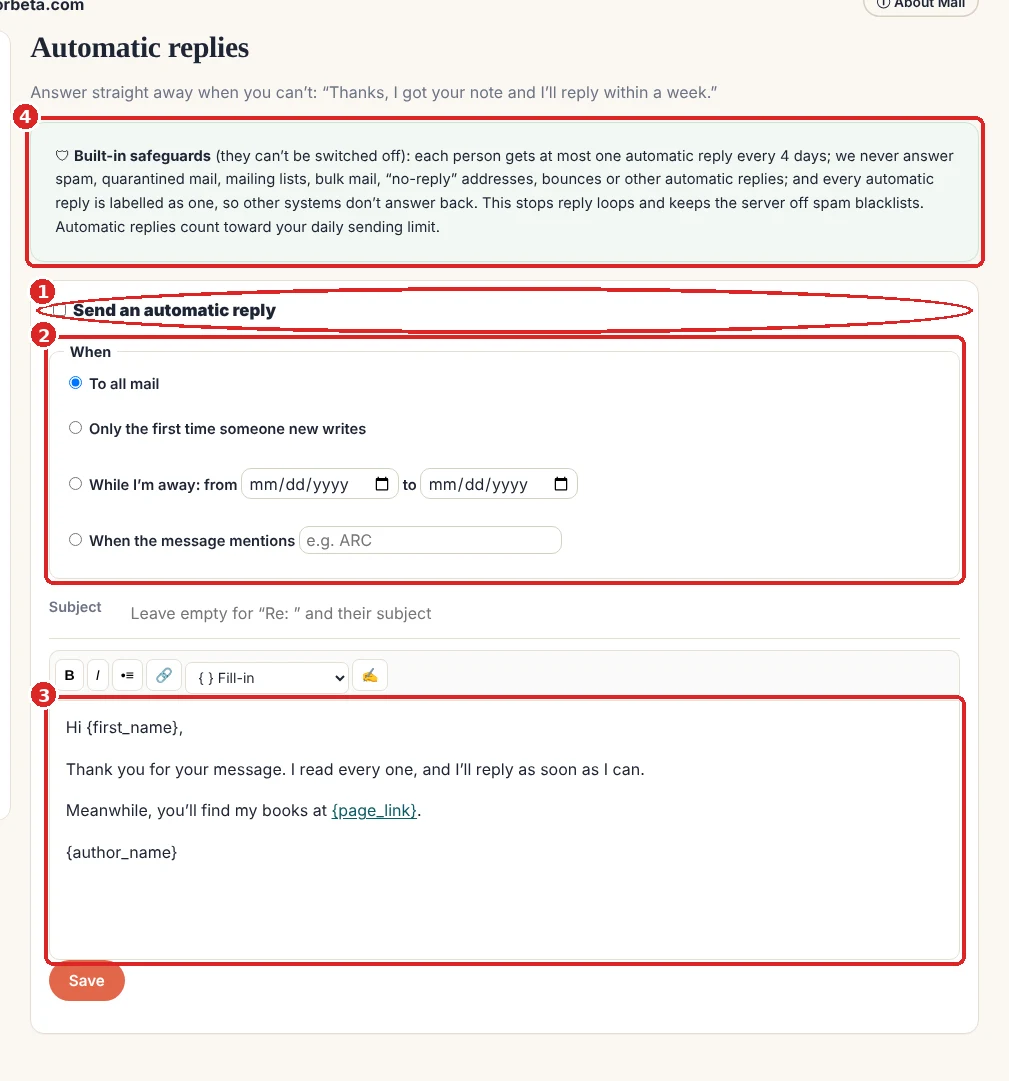
- Switch it on.
- Choose when: to all mail, only the first time someone new writes, while you’re away (between two dates), or when a message mentions a word such as “ARC”.
- Write the reply. Fill-ins, your signature and templates work here too.
- Safeguards that can’t be switched off: one automatic reply per person every 4 days, and never to spam, quarantined mail, mailing lists, bulk mail, “no-reply” addresses, bounces or other automatic replies. This stops two automatic systems answering each other forever.
10. Spam, Quarantine and sender lists
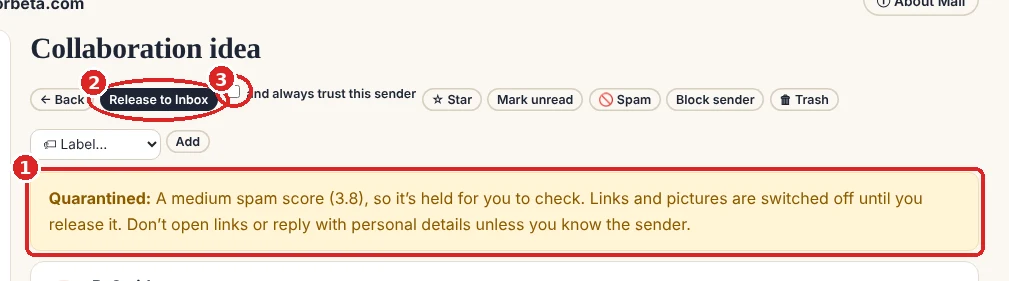
- Why it was held: a medium spam score, an attachment we had to remove, or a link on a spam blocklist. Links and pictures stay off until you decide.
- Release to Inbox if you know the sender.
- Tick and always trust this sender so their mail never lands here again.
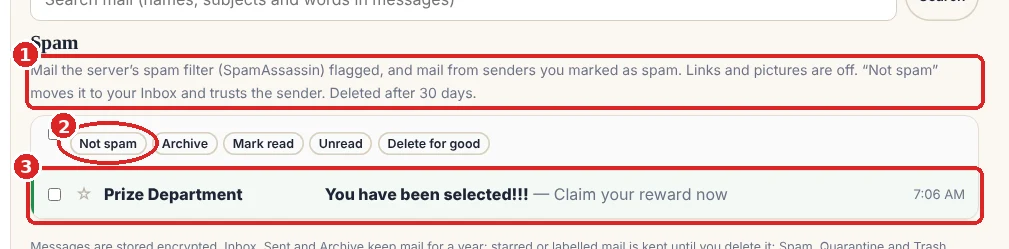
- Spam holds what the server’s spam filter caught, and mail from people you marked as spam. It empties itself after 30 days.
- Not spam moves a message to your Inbox and makes the sender a safe sender.
- Tick messages to act on several at once.
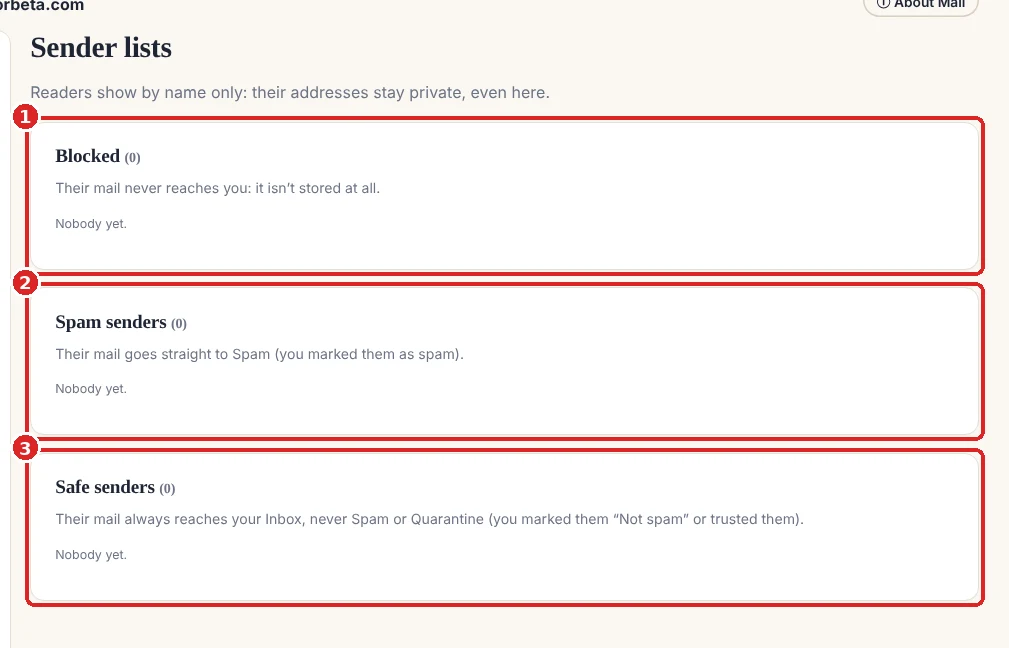
- Blocked: their mail never reaches you and isn’t stored.
- Spam senders: their mail goes straight to Spam.
- Safe senders: their mail always reaches your Inbox. Remove anyone from any list in one click. Readers still show by name only.
11. Limits, and why
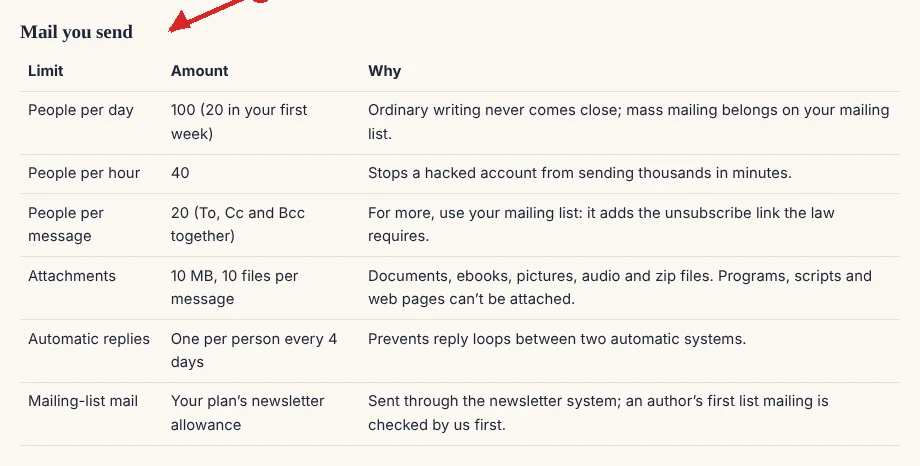
Every author shares the same mail server, so one person sending spam could get everyone’s mail blocked. Ordinary writing never comes near these limits: 100 people a day (20 in your first week), 40 an hour and 20 per message. For bigger mailings, use your mailing list. Before anything leaves, links can be checked against the Spamhaus spam blocklist; a message that fails a check is held for review instead of sent, and we either send it or return it to your Drafts with a note.
Good to know
- Files attached to mail you receive are removed for safety; ask people to share a link. Files other authors send you through Mail are kept.
- Inbox, Sent and Archive keep mail for a year; starred or labelled mail is kept until you delete it; Spam, Quarantine and Trash empty after 30 days.
- Your address is your page name. Readers who type it with dots (
m.a.kirkeby@) still reachm-a-kirkeby@. - Coming next: custom addresses we provide, and bringing your own domain (you@yourname.com).
Related
- Mail: your Author Beta address · A complete mail program on your page name @ authorbeta.com: write, reply, designs, templates, automatic replies, with readers’ addresses kept private and spam kept out.
- A sua newsletter · With Cliff Hanger: a sign-up form on your pages, double opt-in, issues written here and sent for you through SendFox. You see counts, never readers’ addresses.
Still stuck, or something here is wrong? Tell us and we’ll fix it.