

The Writing Desk: a tour
Projects, the left panel, the inspector, saving and what the free desk includes.
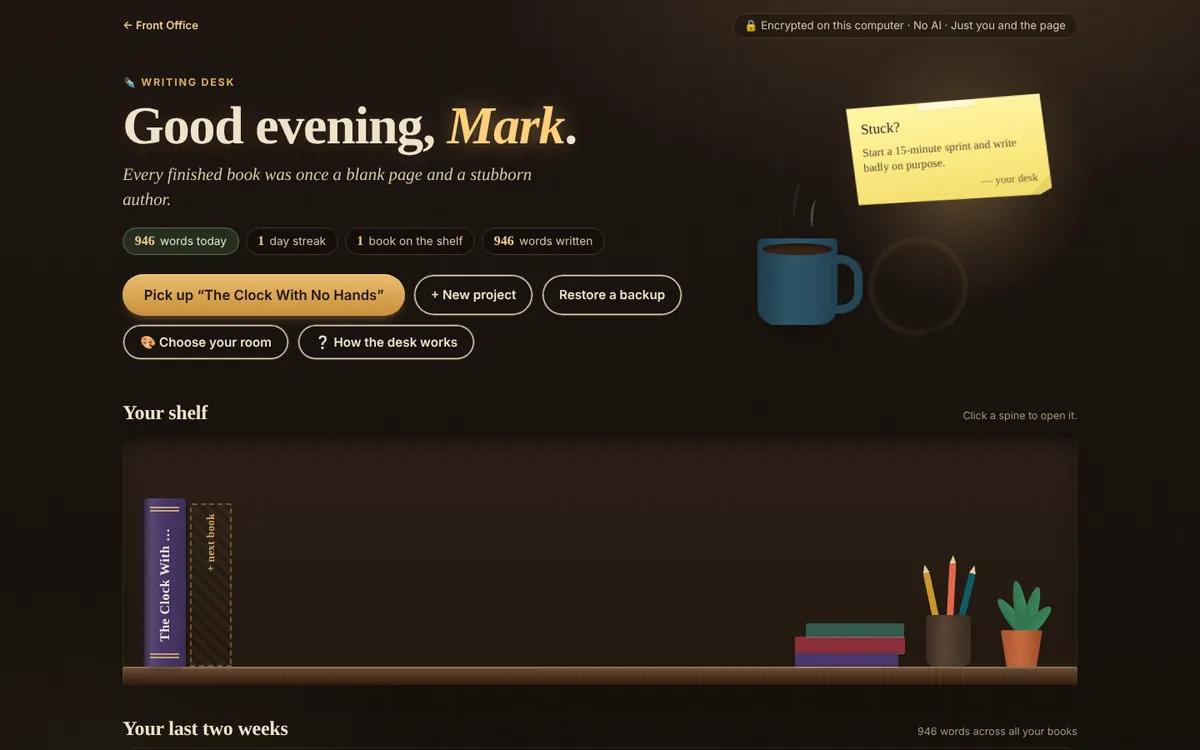
The Writing Desk is a private room for your book. It runs in your browser, and everything in it is encrypted on your computer before it’s saved, so we can’t read it. No AI reads it, and nothing you write is used to train AI. AI tools are optional assistants, not the writer, and are sandboxed by default: the AI Writing Assistant sees only what you paste into it, and AI Artwork only the picture description you approve. If you choose, Full AI lets your own AI account follow one book, set per book in Project settings.
Start a project
- Open the Writing Desk (sign in first).
- Choose New project. Give it a title, choose a single book or a series, and add the author name for title pages.
- Your project opens on its first chapter. Start typing; it saves as you go (watch for Saved at the top).
Find your way around
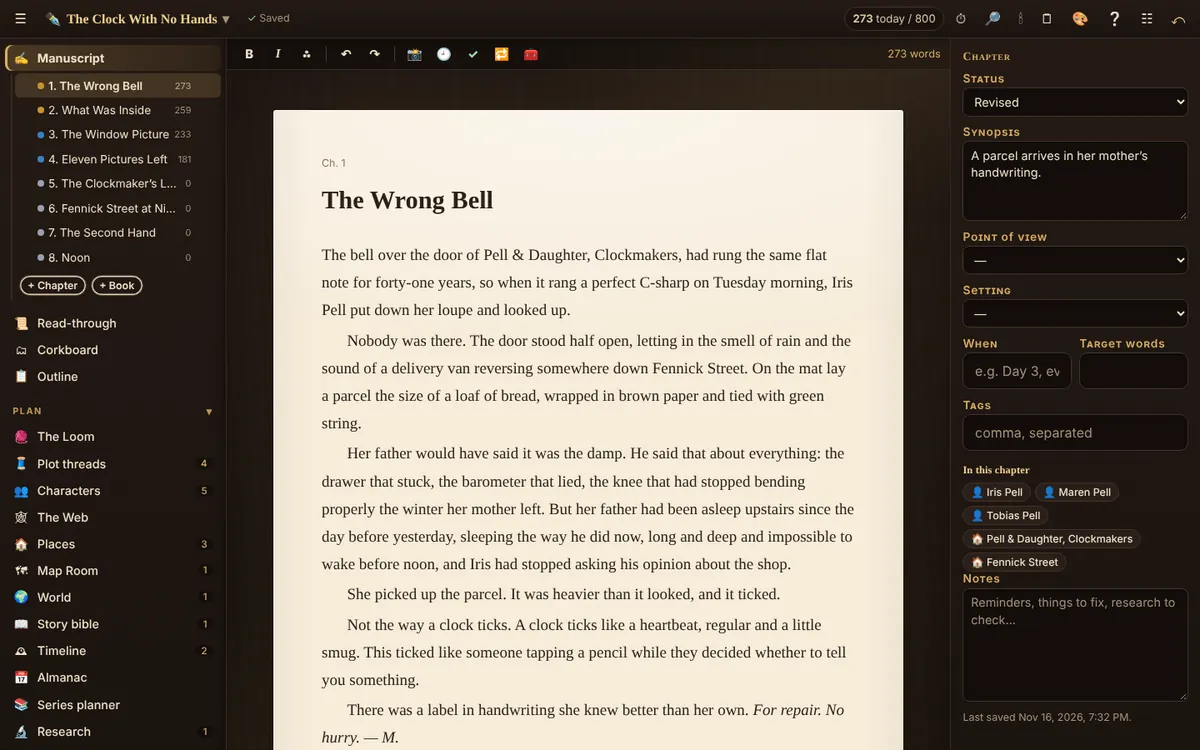
- Left panel: your chapters and scenes, then the tools in groups: Plan, Revise, Publish. ☰ shows or hides it.
- Inspector (☷): on the right, the details of what’s open: status, point of view, place, a synopsis, a word target, notes, and the characters and places named in the text.
- Top bar: words today, ⏱ writing sprint, 🔎 quick find, 🕯 Lamp mode, 🗒 Side table, 🎨 choose your room, ❔ help for the tool you’re in.
The free desk
Free accounts get one project with one chapter, and every tool, for as long as you like. The whole desk (every chapter, whole series, compiling, import, Send to Readers) is the Writing Desk plan ($36 a year), and it’s part of Cliff Hanger too. Anything you write on the free desk stays where it is when you upgrade.
Gör den till din
- Two spaces: the switch at the top of the left panel moves between ✍️ Write (your manuscript, planning and revising tools) and 📦 Publish and design (The Press, Cover Studio, Spine Rule, Query Desk and Send to Readers, with links to templates and Marketing). Each space remembers where you were.
- ★ My tools: tap ☆ beside any tool in the left panel to add it to ★ My tools at the top. Choose Show only My tools for a short list; Show all tools brings the rest back. This is remembered on each computer.
- 🎨 Room: each room has its own colours, desk objects and shelf, and the writing page takes the room’s colours too. Prefer plain paper? Settings → Page → Cream paper, Sepia or Dark.
- 💬 Feedback in the top bar sends us a note about the tool you’re using.
Related
- Writing: chapters, scenes and the editor · Add and reorder chapters and scenes, format text, scene breaks, word targets and statuses.
- Choose your room · 26 looks for the desk around your page, or make your own from any two colours. The page itself always stays paper.
- Backups · Download everything in a project as one file, locked with a password, and restore it any time.
- Planer: Gratis, Writing Desk och Cliff Hanger · What each plan includes and what it costs.
Still stuck, or something here is wrong? Tell us and we’ll fix it.